eSIM 接続トラブルシューティングガイド
eSIM が 4G LTE または 5G ネットワークに接続済みと表示されていても、インターネットに接続できない原因はいくつか考えられます。 eSIM がデータネットワークに接続されていないと、次のような症状が発生することがあります。
- アップロードまたはダウンロードの速度が極端に遅い
- 電波表示が 4G LTE や 5G ではなく「E」(Edge)のみになっている
- eSIM が「接続済み」と表示されているのにインターネットに接続できない
重要:eSIM を削除しないでください。 うまく動作しない場合は、 以下の手順に従うか、お問い合わせください。
1. eSIM のサービス提供エリア内にいることを確認する
eSIM は、購入時に選択した地域または国でのみ利用できます。
例:アメリカの eSIM はアメリカ国内でのみ接続できます。 eSIM はいつでもインストールできますが、目的地に到着するまではネットワークに接続されません。
2. データローミングをオンにする
eSIM を接続するには、データローミングを有効にする必要があります。
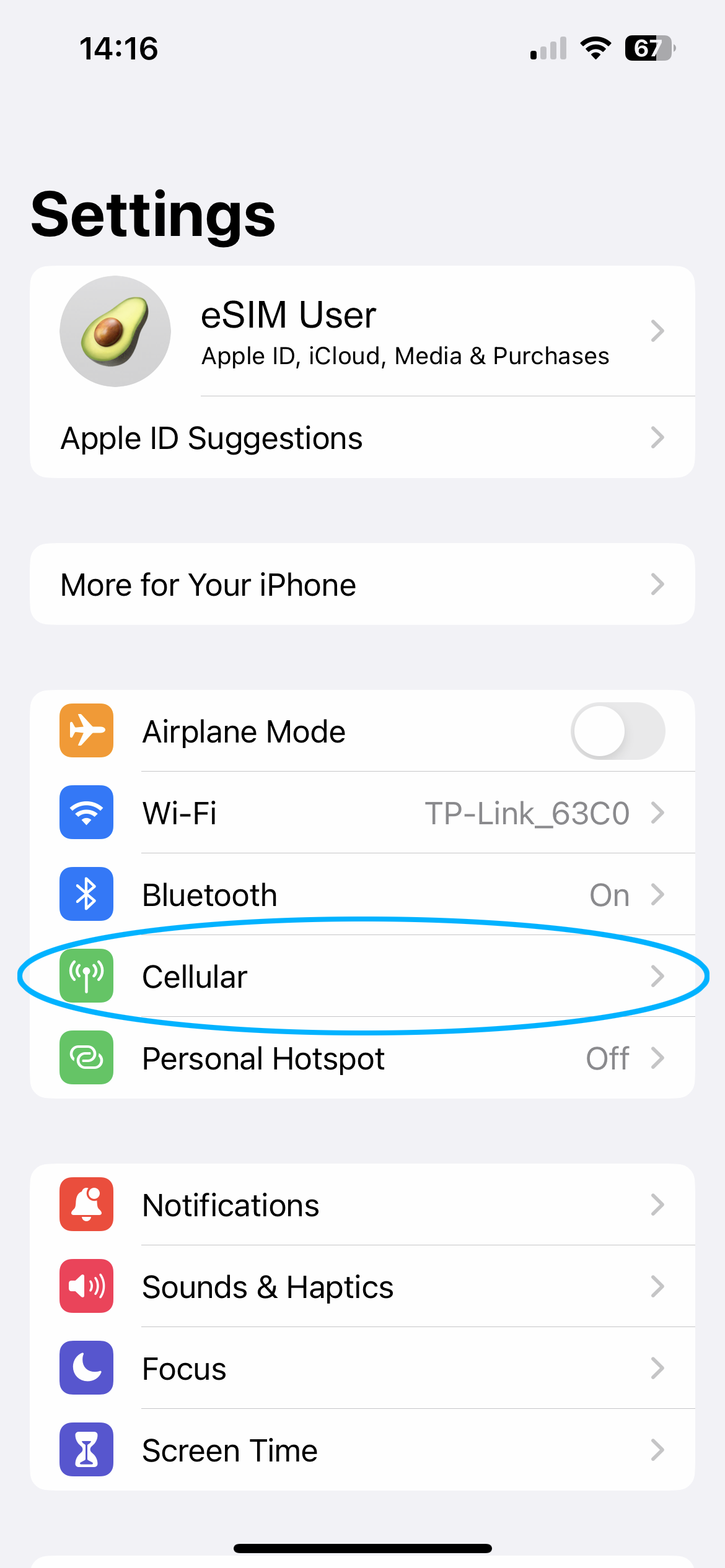
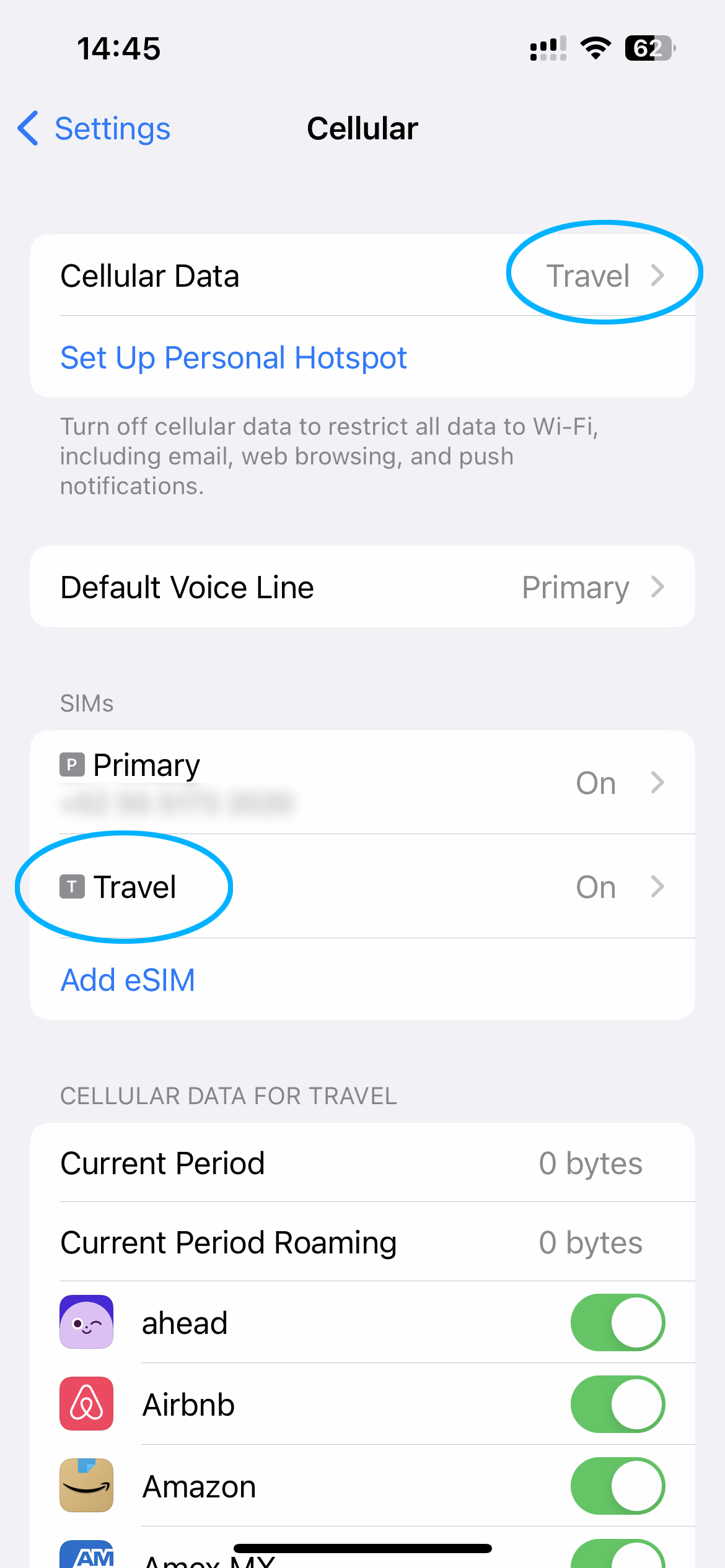

iPhone / iPad(iOS)
- 設定 → モバイル通信 を開く
- eSIM のプランを選択する(「副回線」や「個人用」と表示される場合があります)
- この回線をオンにする がオンになっていることを確認する
- データローミング がオンになっていることを確認する
Samsung Galaxy(Android)
- 設定 → 接続 を開く
- モバイルネットワーク をタップする
- データローミング を有効にする
Google Pixel(Android)
- 設定 を開く
- ネットワークとインターネット をタップする
- SIM をタップして eSIM のプランを選択する
- データローミング と モバイルデータ を有効にする
3. eSIM をモバイルデータ回線に設定する
iPhone / iPad(iOS)
- 設定 → モバイル通信 を開く
- モバイルデータ通信 をタップする
- eSIM のプランを選択する(例:「旅行」「個人用」またはプラン名)
Samsung Galaxy(Android)
- 設定 → 接続 を開く
- SIM カードマネージャー をタップする
- eSIM をモバイルデータ用の SIM として選択する
Google Pixel(Android)
- 設定 を開く
- ネットワークとインターネット をタップする
- SIM の下で eSIM のプランを選択する
4. Android のみ — APN を設定する
Android 端末が接続済みなのにデータ通信ができない場合は、APN の設定を確認してください。
- 設定 → モバイルネットワーク を開く (Samsung:接続 → モバイルネットワーク)
- eSIM のプランを選択する → アクセスポイント名(APN)
- メニュー → 新しい APN をタップする
- APN 欄に入力:「マイ eSIM」 で APN を確認してください
- ユーザー名とパスワードの欄は空にする(何も入力しない)
- 保存して、新しい APN を選択する
5. データ接続をリセットする
機内モードを 30 秒間オンにしてから、オフにします。 端末が自動的に再接続します。 eSIM のデータプランの認証には最大で 15 分 かかる場合があります。
6. ネットワークを手動で選択する
データ接続のリセットで解決しない場合は、ネットワークを手動で選択してみてください。
iPhone / iOS
- 設定 を開く
- モバイル通信 → eSIM のプランを選択する
- ネットワーク選択 をタップする
- 自動 をオフにする
- リストからネットワークを選択する
- 電波が更新されるのを待つ
- 安定した接続が見つかったら、「自動」を再度オンにする
最適なネットワークの選択にお困りの場合は、お気軽にお問い合わせください。
それでもデータ接続できない場合は?
上記の手順で問題が解決しない場合は、そのエリアで一時的にサービスが提供されていないか、当社では対応できないネットワークの問題が発生している可能性があります。 ネットワーク選択を 自動 のままにして、しばらくしてからもう一度お試しください。
まだお困りですか?リクエストを送信してください。担当チームが速やかに対応いたします。